


Lightbox draw - tracing paper
4.753.00 Reviews
App Specs
- Version
- 1.0.53
- Updated On
- License
- Free
- Downloads
- 500,000+
- Developer
- Try the Colors s.r.o.
- Categories
- Art & Design
- Platform
- Android
Screenshots
 Analysis by AppCompare
I like the idea behind Lightbox draw - tracing paper: instead of trying to draw over a reference on the same screen, I can use my phone as an illuminated surface and work on paper placed over it. That makes it a practical bridge between digital references and traditional drawing. It is an art and design app from Try the Colors s.r.o., and its appeal is clearest when I want help transferring a shape without changing how I prefer to make the finished picture.
When the image is already on your phone
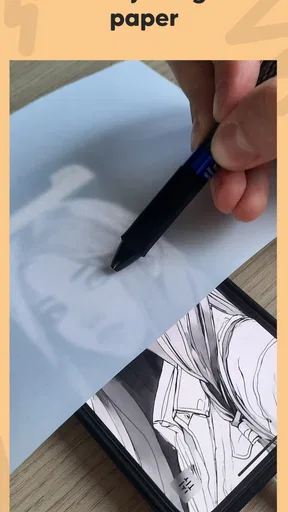
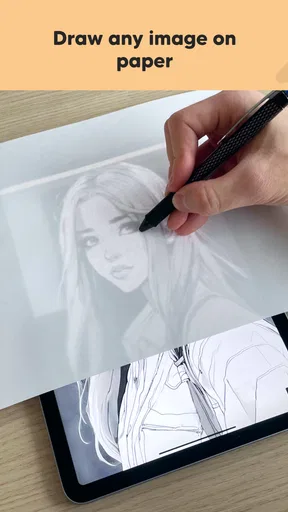
The app’s useful moment often starts before I open it: I have a reference image in my gallery and want to turn its outline into a paper sketch. I can bring that image into the lightbox view, position paper over the screen, and follow the visible lines. For a greeting-card illustration, a small decorative motif, or a character sketch, that can save the awkwardness of repeatedly looking from a separate screen to the page.
Connectivity matters most when I am finding or moving a reference image, rather than while I am drawing. If the picture is already accessible in my gallery, I can move straight to the tracing task; if I am relying on an online image or cloud library, getting that image ready may depend on my connection and account setup. I would prepare the reference before sitting down to draw, especially if I expect to work somewhere with unreliable reception. That keeps the creative part from turning into a search-and-download interruption.
A small screen changes the kind of work that feels comfortable
A phone is handy for quick studies and compact designs, but it does not provide the same working area as a dedicated lightbox. I find it most suitable for outlines that fit comfortably on the display and for paper that can be positioned without covering the controls I need. A tablet is a more comfortable choice when I want a larger working area or need to see fine details clearly. The trade-off is simple: the phone is easier to carry, while a bigger screen is easier to work over for longer sessions.
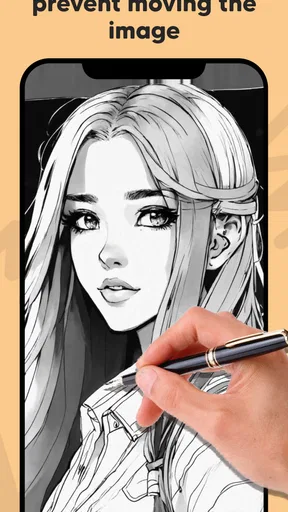
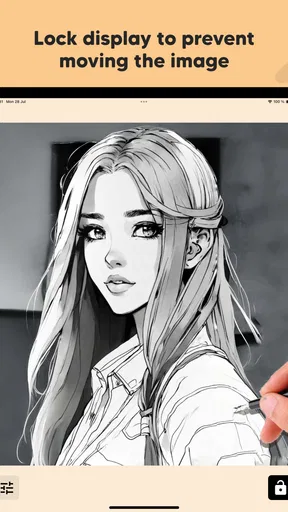
There is also a physical setup to consider. I would place the phone on a stable, flat surface, make sure the paper stays still, and avoid pressing hard enough to shift either one. A clear screen helps the image remain easy to follow, and the app’s screen-lock option is useful when my hand or paper might otherwise trigger an accidental touch. That is a small but meaningful convenience: it lets me focus on the line rather than repeatedly correcting an interrupted view.
Getting Started with Lightbox
First things first, setting up Lightbox draw - tracing paper is a breeze. You just install it from your preferred app store, and you’re good to go. No complicated registration or unnecessary permissions—just straightforward, user-friendly setup. Once you’ve got it on your device, you’ll see a clean and intuitive interface that’s easy to navigate.
Features that Stand Out
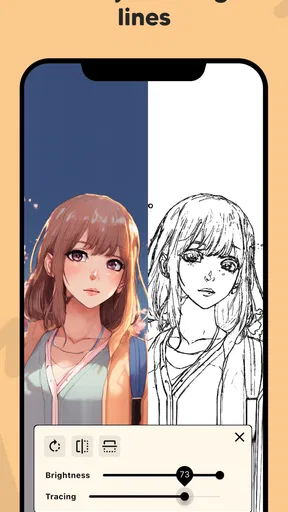
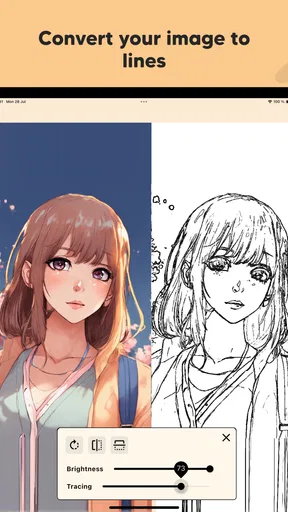
Now, onto the fun stuff. One of the features I absolutely love is the ability to adjust the brightness of your screen. This makes tracing over images much easier, especially in different lighting conditions. You can import any image from your gallery and adjust it to fit your tracing needs. Whether you’re working on a detailed piece or just need to outline a simple shape, this app has got you covered.
Worth Reading Before You Choose

EA SPORTS FC Mobile 26 Is a Bigger Football Game, but It Takes Time

Flipboard Shows What News Apps Must Do Beyond the Feed

Switching to Android Auto Means Rethinking Your Driving Routine

Google Calendar Makes a Crowded Week Easier to Manage

Ludo King Makes the Most of the Minutes Between Plans

Baby Panda World Brings Quick Play to Modern Phones, but Its Game Library Feels Busy
The app also allows you to lock the screen, preventing any accidental touches from messing up your work. Trust me, if you’ve ever been deep in concentration only to have your elbow accidentally hit the screen, you’ll appreciate this feature.
Picking the right reference and preparing it
For a more reliable tracing session, I would choose an image with a clear subject and strong edges. Busy backgrounds and low-contrast details can make lines harder to distinguish through paper, even when the display is bright. A useful workaround is to prepare a simpler version of the reference in an image editor before importing it, if that suits the project. This is not about making the drawing less ambitious; it is about removing visual clutter that does not help with the outline.
Think about scale before you start, too. If the reference has several important parts, decide which area matters most and position it where your hand can reach without nudging the phone. For a larger design, tracing separate sections can be easier than trying to fit everything into one small view. The trade-off is that joining sections takes care, so I would use this approach for designs where approximate alignment is acceptable rather than for work that demands exact registration across a large sheet.
Why It’s Perfect for Artists
For artists, especially those who love working with traditional mediums, this app is a game-changer. Imagine being able to transfer complex designs to your canvas without the hassle of using a projector or lightbox. It’s like having a portable lightbox right in your pocket. Plus, it’s much more discreet, which means you can work on your art anywhere without drawing too much attention.
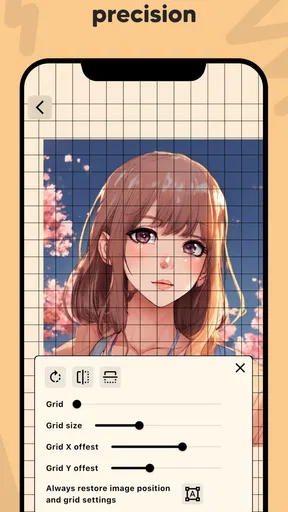
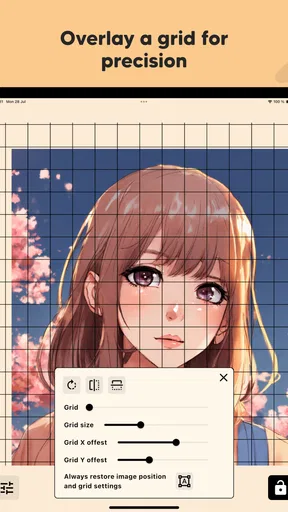
Another neat feature is the ability to create grids. This is particularly useful if you’re into grid drawing techniques. It allows you to break down your reference image into smaller sections, making it easier to reproduce accurately.
A realistic session, from reference to paper
Say I have a quiet half hour at home and want to sketch a leaf pattern for a handmade card. I would pick a reference already saved on my phone, open it in the app, adjust the brightness until the lines show through the paper without washing out, then lock the screen before I begin. Once the outline is down, I can put the phone aside and finish the card with pencil, ink, or paint. This is where the app makes most sense to me: it helps with the transfer, but it does not try to replace the materials or decisions that make the drawing my own.
For a beginner, that workflow can make proportions less intimidating. For someone experienced, it can be a quick way to test a composition or reproduce a motif. I would not rely on it as a substitute for learning to observe and draw freehand, though. Tracing is a useful tool for practice and production, but it does not automatically teach how to construct a form or understand perspective. I see it as one option in a broader toolkit, not a shortcut that makes every drawing problem disappear.
Some Handy Tips
One tip I’d recommend is to use a stylus if you’re planning to draw directly on your device. It gives you a bit more precision compared to your finger. Also, make sure your screen is clean to avoid any unwanted marks on your paper when tracing.
Another thing to keep in mind is the size of your device. If you’re working on a larger project, using a tablet might be more comfortable than a phone. Bigger screens give you more space to work with, which can be crucial for detailed artwork.
When something interrupts the workflow
If the reference will not appear as expected, I would first check whether it is available in the phone’s gallery and try selecting it again. When the image is stored online rather than locally, a connection problem can interrupt access before tracing even begins. Preparing the file in advance is the simplest way to avoid that particular snag. If a touch changes the view at the wrong moment, the screen-lock control can help prevent a repeat, while restarting the drawing setup gives me a chance to reposition the paper and begin cleanly.
Brightness is another point where a little adjustment is better than simply choosing the maximum. A very bright screen may make a pale reference easier to see, but it can also be uncomfortable in a dim room or cause the paper to feel less stable as I work. I would tune it to the room and the paper rather than assume that the brightest setting is always best. For a detailed outline, taking a moment to make the image legible before locking the screen is less frustrating than trying to compensate midway through a trace.
Choosing it over other drawing tools
Compared with a conventional lightbox, the phone-based approach is convenient because I can use a device I already carry and choose a gallery image as my reference. A physical lightbox is still better if I regularly trace large sheets, need a broad, even surface, or want a dedicated setup that does not compete with phone use. A projector can suit oversized work, but it calls for a different workspace and setup. Meanwhile, drawing directly in a digital art app is the better choice when I want layers, undo, brush control, or a finished digital file rather than a paper transfer.
That distinction helps me decide who should try it. It is a good fit for hobby artists, students practicing outlines, parents helping a child copy a simple shape, and crafters who occasionally transfer designs onto paper. I would skip it if my main goal were painting digitally, working at large format, or producing precise technical drawings. Those jobs call for tools designed around digital editing, larger surfaces, or measurement rather than a phone screen used as a light source.
Cost, compatibility, and a sensible trial
The app is free to install and is rated for Everyone. It has an average rating of 4.2 from around 1.7 thousand ratings, with 24 written reviews and over 100 thousand installs. It was released on July 19, 2025, and version 1.0.26 requires Android 7.0 or later. Optional in-app purchases range from $4.99 to $29.99 per item, so I would try the basic tracing workflow first and only consider paying if the available purchase clearly matches a need I have.
Before spending money, I would test the exact kind of image and paper I plan to use. A quick outline on ordinary paper tells me whether the phone’s display is comfortable to trace over and whether the image fits the job. That trial is more informative than assuming every reference will work equally well: thin, pale lines, tiny details, and broad sheets all place different demands on the setup. The free starting point makes it easier to judge the practical fit before deciding whether the app belongs in a regular art routine.
Final Thoughts
Overall, Lightbox draw - tracing paper is a fantastic tool for artists of all levels. Whether you’re a professional artist or just someone who loves to doodle, this app offers a convenient and effective way to enhance your drawing experience. It’s not just about tracing; it’s about having the freedom to create wherever and whenever inspiration strikes. So, go ahead, give it a try, and let your creativity flow!
My connectivity verdict
I see this as a focused helper rather than an all-in-one art studio. The drawing itself can be arranged around an image I already have ready, while finding or retrieving a reference may bring network access into the process. That makes preparation worthwhile: save the picture locally when appropriate, check the composition before laying paper over the screen, and avoid starting a time-limited project while still hunting for an image. If that modest workflow suits the way you draw, this app is an easy idea to test; if you need a dependable large-format workspace or a full digital canvas, a physical lightbox, projector, or drawing app will serve you better.
Pros
- User-friendly interface suitable for all ages.
- Offers a wide range of drawing tools.
- Supports importing images for tracing.
- No internet connection needed to use.
- Regular updates improve features.
Cons
- Limited free version capabilities.
- Ads can be intrusive at times.
- Some tools require in-app purchases.
- May lag on older devices.
- No cloud save option for projects.
FAQs for Lightbox draw - tracing paper
What is Lightbox Draw - Tracing Paper used for?
Lightbox Draw - Tracing Paper is an app designed to help users trace images easily. By using your device's screen as a lightbox, it allows you to overlay paper and trace directly from the screen. This is particularly useful for artists, students, and hobbyists looking to improve their drawing skills or replicate images accurately.
How do I use Lightbox Draw - Tracing Paper effectively?
To use the app effectively, select an image from your gallery or the internet and adjust its size and position on your screen. Once you’re ready, place a piece of paper over your device and use a pencil to trace the image. Ensure your device’s brightness is set high for better visibility through the paper.
Is Lightbox Draw - Tracing Paper compatible with all devices?
The app is designed to work on most Android and iOS devices. However, the effectiveness of tracing may vary depending on the screen size and brightness capabilities of your device. It’s always a good idea to check the app’s compatibility with your specific model in the app store before downloading.
Are there any in-app purchases or subscriptions in Lightbox Draw - Tracing Paper?
While Lightbox Draw - Tracing Paper is free to download, it may offer in-app purchases or subscriptions to unlock additional features or remove ads. Users interested in these enhancements should review the app’s description in the app store for detailed pricing information before making any purchases.
Can I trace any type of image with Lightbox Draw - Tracing Paper?
Yes, you can trace virtually any image that can be displayed on your device. This includes photos from your gallery, drawings, or images found online. For best results, choose high-contrast images and adjust the brightness to ensure clarity when tracing through the paper.


